
How to Generate and Store a PDF in Zoho Creator Using Deluge
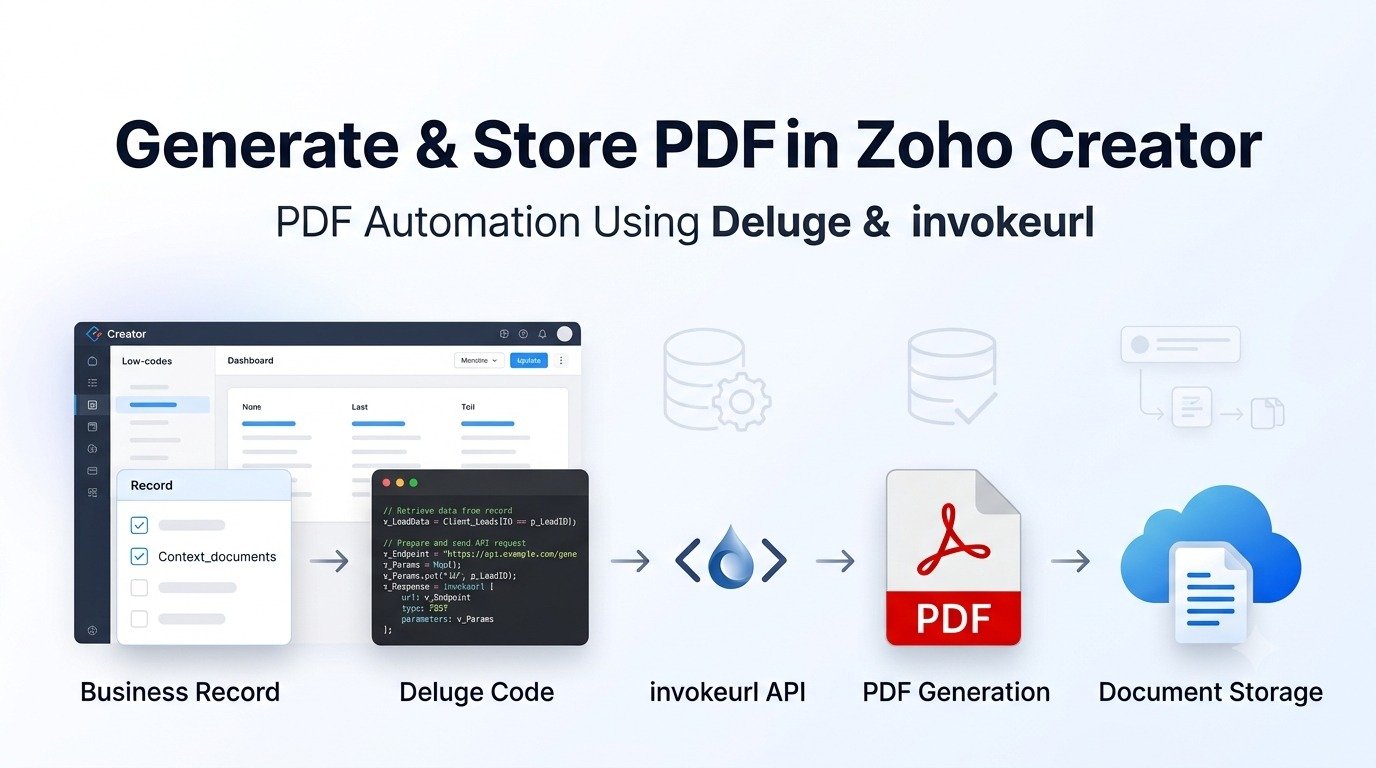
Zoho Creator provides powerful low-code capabilities for automating business processes, generating documents, and storing files directly inside an application. One common requirement is to generate a PDF from a Zoho Creator page and save that PDF into a file upload field using Deluge.
In this tutorial, we will explain how to generate a PDF using a Zoho Creator public page export URL, download the file with invokeurl, and store it inside a custom Document form.
This approach is useful for:
- Zoho Creator PDF generation
- Deluge PDF export
- Saving generated PDFs in Zoho Creator
- Zoho Creator file upload automation
- Zoho Creator document management
- Deluge invokeurl file handling
- Zoho Creator page export to PDF
Zoho Creator PDF Generation
urls = “https://creatorapp.zohopublic.com/export/<App_Owner>/<App_Name>/pdf/<Page_Name>/q5wrxjpwRA9BuQgPv5E8gEpODjHeBRVbSsWQsXSC4a0uwe2UfHxFj5WqMG9Sq3Rh4r4w2RkrCWSAaHYTUyBG5WvfxGSAnCEWwKgn?r_id=”
+ input.recorID + “&isc5page=true”;
file_obj = invokeurl
[
url : urls
type : GET
];
Insert_Doc = insert into Document
[
Template_Type = “PDF”
Added_User = zoho.loginuser
File_Upload1 = file_obj
Agents = input.Agents
];
What This Deluge Code Does
The code performs three main actions:
- Creates a dynamic Zoho Creator PDF export URL.
- Downloads the generated PDF using invokeurl.
- Inserts a new record into the Document form and stores the PDF in a file upload field.
The overall flow looks like this:
Zoho Creator Record
↓
Dynamic PDF Export URL
↓
invokeurl GET Request
↓
PDF File Object
↓
Insert into Document Form
↓
Store PDF in File Upload Field
Steps Breakdown-
Step 1: Create the PDF Export URL
The first part of the code is:
urls = “https://creatorapp.zohopublic.com/export/App_owner/App_name/pdf/Page_Name/q5wrxjpwRA9BuQgPv5E8gEpODjHeBRVbSsWQsXSC4a0uwe2UfHxFj5WqMG9Sq3Rh4r4w2RkrCWSAaHYTUyBG5WvfxGSAnCEWwKgn?r_id=”
+ input.recorID + “&isc5page=true”;
This URL tells Zoho Creator to export a specific page as a PDF.
The general structure is:
Understanding isc5page=true
The URL also contains:
&isc5page=true
This parameter is generally used with Creator page export URLs to indicate that the resource being exported is a Creator page.
The final URL therefore identifies:
- The application
- The Creator page
- The export format
- The record ID
- The required page parameters
Step 2: Download the PDF Using invokeurl
The next part is:
file_obj = invokeurl
[
url : urls
type : GET
];
invokeurl is one of the most useful Deluge tasks for API integrations and file handling.
Here, it sends a GET request to the PDF export URL.
Because the URL returns a file, Zoho Creator stores the response in: file_obj
The file_obj variable now contains the generated PDF file.
Conceptually:
PDF Export URL
↓
invokeurl
↓
GET Request
↓
PDF Response
↓
file_obj
This file object can then be stored in a Creator file upload field or attached to an email.
Step 3: Insert the PDF into a Document Form
The next section creates a new record:
Insert_Doc = insert into Document
[
Template_Type = “PDF”
Added_User = zoho.loginuser
File_Upload1 = file_obj
Agents = input.Agents
];
Note: Here, Document is the form link name
Store the Generated PDF
The most important line is:
File_Upload1 = file_obj
File_Upload1 is a Zoho Creator file upload field.
The PDF returned by invokeurl is assigned directly to this field.
So the process becomes:
PDF generated
↓
file_obj
↓
File_Upload1
↓
Document saved in Creator
This is a very useful method for building a Zoho Creator document management system.
Then save it
Practical Use Cases
This Zoho Creator Deluge PDF generation technique can be used for many business processes.
Invoice Generation:
Generate an invoice page as a PDF and automatically save it in a document form.
Employee Summary:
Generate employee or agent summary PDFs and maintain document history.
Customer Reports:
Create customer-specific PDF reports based on record IDs
Asset Management:
Generate asset handover forms, asset summaries, and assignment documents.
Sales Reports:
Create sales summaries or performance reports for individual users.
Compliance Documents:
Generate consent records, audit documents, DNC reports, or verification summaries.